
| Item | Owner | Admin | Member |
|---|---|---|---|
| See projects | Shared projects and their own private projects | Shared projects and their own private projects | Assigned projects they can open |
| Create projects | Yes | Yes | Yes |
| Review, reply and resolve | Yes | Yes | Yes, on their projects |
| Share a project and invite reviewers | Yes | Yes | Yes, on their projects |
| Rename or archive a project, change who on the team can open it | Yes | Yes | No |
| Change workspace name and color | Yes | Yes | No |
| Add teammates | Any role | Members only | No |
| Connect an agent for workspace feedback or make a personal token | Yes | Yes | No |
| Edit a hosted site with editing enabled | On sites they can open | On sites they can open | On assigned sites they can open |
| Accept a change and publish a hosted site | Yes | On sites they can open | On assigned sites they can open |
| Connect an AI to build and edit hosted sites | All hosted sites | Sites they can open | Their assigned sites |
| See plan and billing | Yes | No | No |
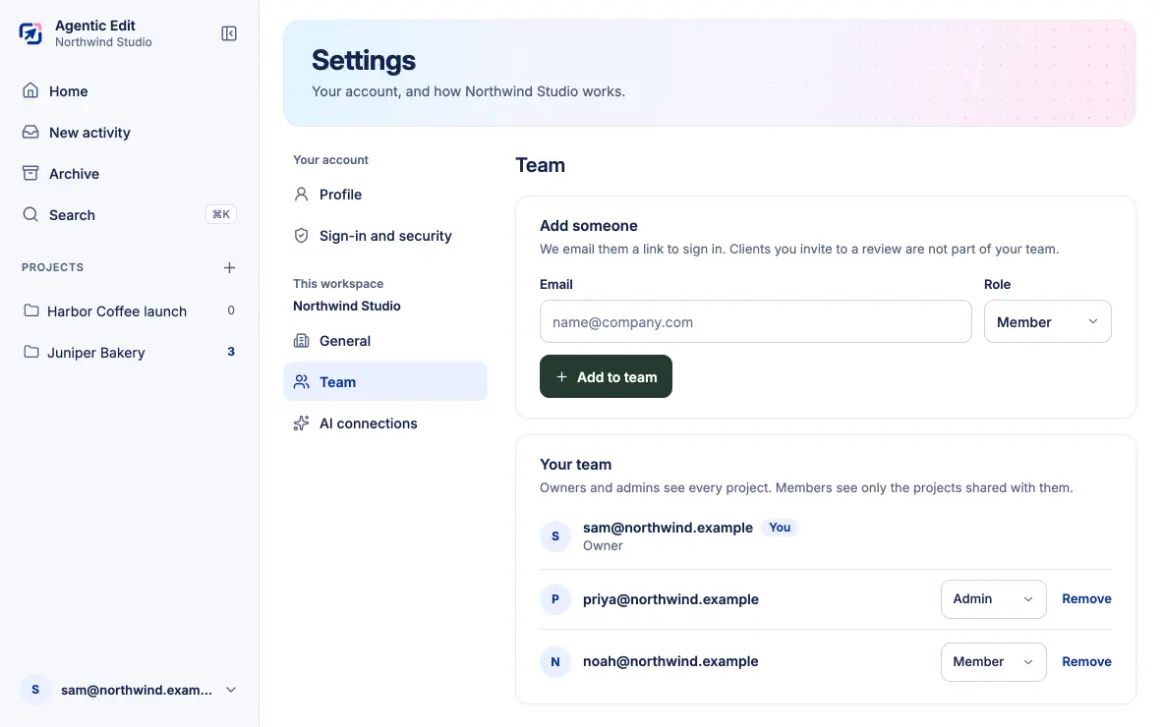
Change someone’s role
- Open Settings, then Team.
- Change the role beside their name. Only owners can change roles.
Share one project with a member
Open the project’s ... menu, choose Project settings, and tick their name under Team access. Changes save automatically. If the project is set to Only me, change who can open it in Share first.
Edit a hosted website
- Add the teammate in Workspace settings → Team. Give them Member access for just the projects you assign. For a shared project, select their name under Project settings → Team access. Website owners can also open Website settings → App Users → Manage project team.
- The teammate signs in with their own account and opens the hosted project. From Home, use the website’s Settings, or More actions → Edit website to open its editor. Ask your connected AI assistant (ChatGPT, Claude or Codex) to make the change, then review it before it goes live. For a manual change, open Source.
- When the site’s builder stages your change, open its private preview: from your assistant’s link without signing in, for one hour, or in Agentic Edit. Everyone on the website’s team can open and decide on each other’s previews, which earlier only their author could. The public site keeps serving its current version until someone on the team, or an owner, approves and publishes the new build.
To use ChatGPT, Claude or Codex, start in Connect your AI. Each member connects with their own account. The approval page lists each workspace as plain on and off switches, and nothing is on until you turn it on. Allow everything at the top turns on every switch it covers and names the few it leaves off. Under Websites, choose what it may do on each one: Edit, Publish and Manage. An owner sees every hosted website, an admin every one they can open, and a member the ones on whose project team they are. Create new websites has its own switch. For a connection to just one website, a member or admin chooses One website only, as its own connection and turns on Start private edits from this chat. To work on another site, reconnect and choose it. Everyone on a website’s project team can publish it: they review the exact build before it goes live, accept or reject an AI change, and their own connection can be allowed that website’s data tables and client preview links, and reads its forms. Both AI switches in Who can publish start on for every website, and an owner can turn either off for a website. While Publishers’ connected AI assistants can publish is on, they can also tick Publish this website live when connecting, so their assistant publishes a version they opened while signed in. Opening the assistant’s link counts too, but only where they also ticked Manage this website, because anyone they forward the link to can open it. While AI can manage this website is on, they can tick Manage this website, so their assistant accepts or rejects changes and rolls back for them without signing in; an owner’s assistant can also stop change tasks, restore the source and prepare its preview. An assistant that creates websites, or edits the websites ticked for it, can also be allowed Inspect hosting and propose operations for these websites: it checks hosting and asks for publication or a custom domain, which a person decides in Agentic Edit. An assistant that creates websites adds photos, fonts and documents to their private drafts without it. That stops when the person who allowed it signs out. An assistant can delete files too, but only in its private draft: nothing live changes until that version is published, and the version before stays available to roll back to. On a website built from a Git repository, files are removed in the repository instead. Where an owner or admin lets their assistant create websites, they can also tick Add people to website teams, so it adds someone already in the workspace to a website’s team, by their email address, after asking them; it never invites anyone or changes a role. A member or admin creates up to 10 websites a day from a chat. An assistant connected before November 17, 2026 keeps what it was allowed then: to use these newer choices, reconnect it.
Move a website to another workspace
Moving a hosted website to another workspace is free, and it keeps its address, files, domains and history. An owner opens the website’s Settings, enters the receiving workspace’s ID under Move to another workspace and chooses Offer website. An owner of the receiving workspace finds its ID, and the offer, under Websites moving here in that workspace’s settings, and chooses Accept website. The website moves a day later unless an owner of the sending workspace cancels it; when the sending workspace has two or more owners, a second owner confirms it. The receiving workspace needs a free hosted-website place on its plan and takes over hosting usage from the moment the website arrives. Earlier usage stays with the sending workspace. The sending team, its AI connections, review links and client preview links stop working on the website, and reviewers get new links from the receiving workspace. A mailing business is handed over separately, from the website’s email marketing settings, once the website has moved.
Take someone off the team
Choose Remove beside their name on the Team page. They stop being able to open this workspace, and any coding agent connection they approved stops working. Their comments stay, and Restore brings them back.