
Bring the email in
In a project, choose New canvas, then Email. You have three ways in:
- Forward it to your workspace address. See Forward an email in.
- Upload an
.emlor.htmlfile. An.emlcan be up to 25 MB. - Paste HTML and optionally give the email a name. Email HTML can be up to 10 MB.
Comment on it
- Choose Desktop or Mobile above the email to set its width.
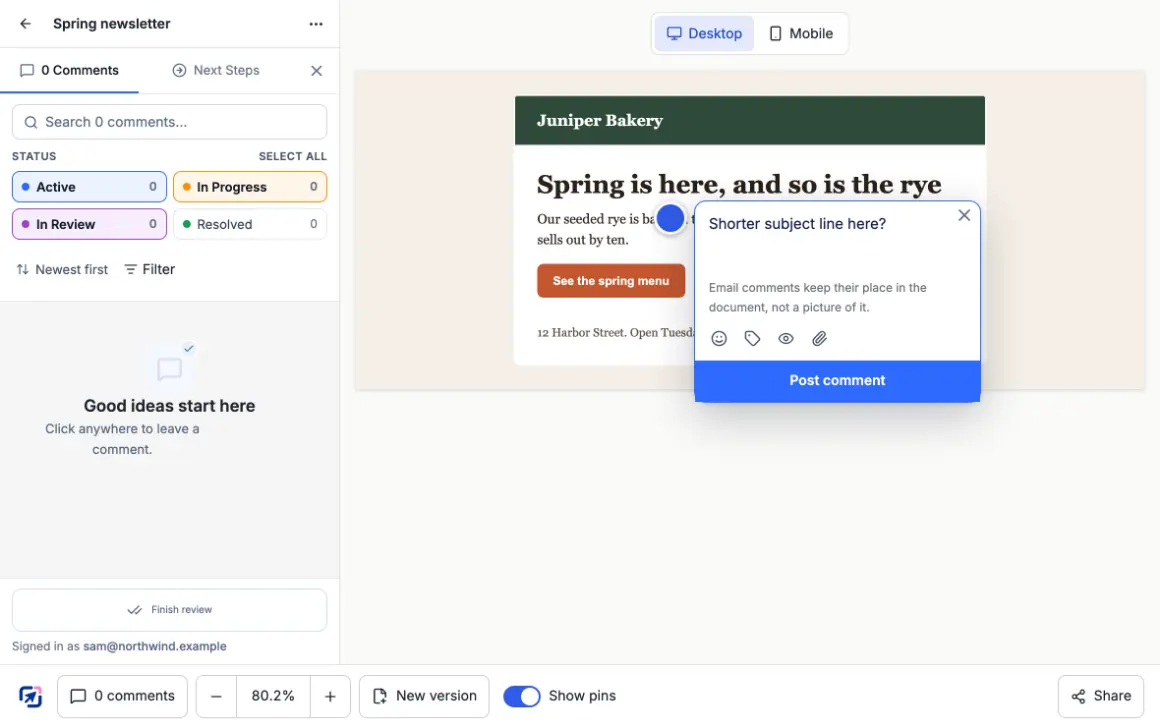
- Hover to see each part outlined, then click to pin a comment.
- Write your note and choose Post comment.
Good to know
- Scripts, forms and event handlers are removed when an email comes in.
- Images load from wherever the email points, when each reviewer opens it. If the sender’s images are private or deleted, they won’t show.
- Links inside the email don’t open: reviewers comment on it, not click through it.
- A comment on an email has no screenshot. It keeps its place and the element it was on.
Got a new draft? Use New version, which offers upload and paste. See Versions.