
Two kinds of deadline
| Closes | Where | Reminders |
|---|---|---|
| Everything in the project | Share, then Link settings and Set a deadline | No |
| One website or canvas | Settings on the project page, then Deadlines & Reminders | Yes |
If both are set, whichever comes first applies. A deadline must be within the next two years.
What a deadline does
After it passes, reviewers can read the feedback but can’t add comments or replies. Your team isn’t affected. Nothing else changes, and you can move or remove the deadline at any time. Each person sees the time in their own time zone.
Set a deadline on one canvas
- On the project page, choose Settings, then Deadlines & Reminders.
- Select the website or canvas.
- Choose a date and time, then Set deadline.
Schedule a reminder
- After setting the deadline, choose Schedule reminders.
- Add the people to remind. Type any address, or pick from On this project.
- Choose a day and time before the deadline. 1 day before and 3 days before are one click away.
- Choose Schedule.
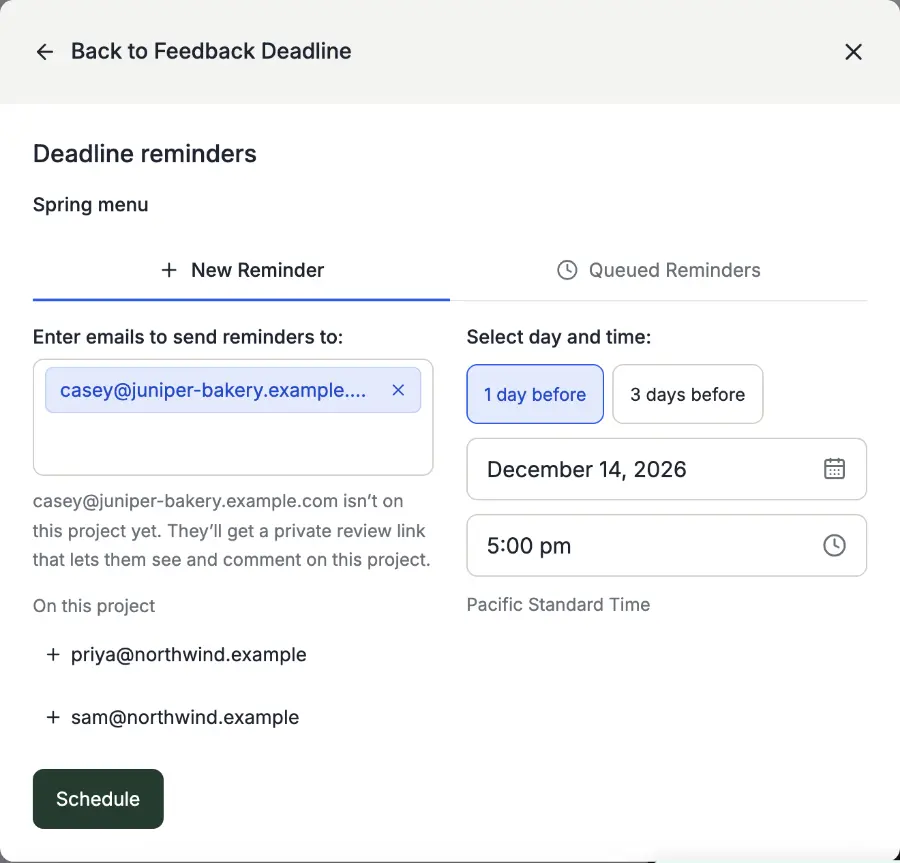
Someone new to the project gets a private review link in their reminder that opens without an account. Your team gets a link that asks them to sign in. If the review has a password, tell new people separately.
| Limit | Number |
|---|---|
| People on one reminder | 20 |
| Reminders waiting on one website or canvas | 10 |
| Reminder emails a workspace can schedule in a day | 200 |
| Reminders one address can get in a day | 5 |
Check what went out
Queued Reminders shows each one as Waiting to send, Sent or Not sent, with the reason for anyone it skipped. Moving a deadline earlier cancels reminders that would have gone out after it. Deleting a deadline cancels all of its reminders.