
- Open the canvas name menu in the review toolbar, or the ... menu on its tile, and choose Move to project.
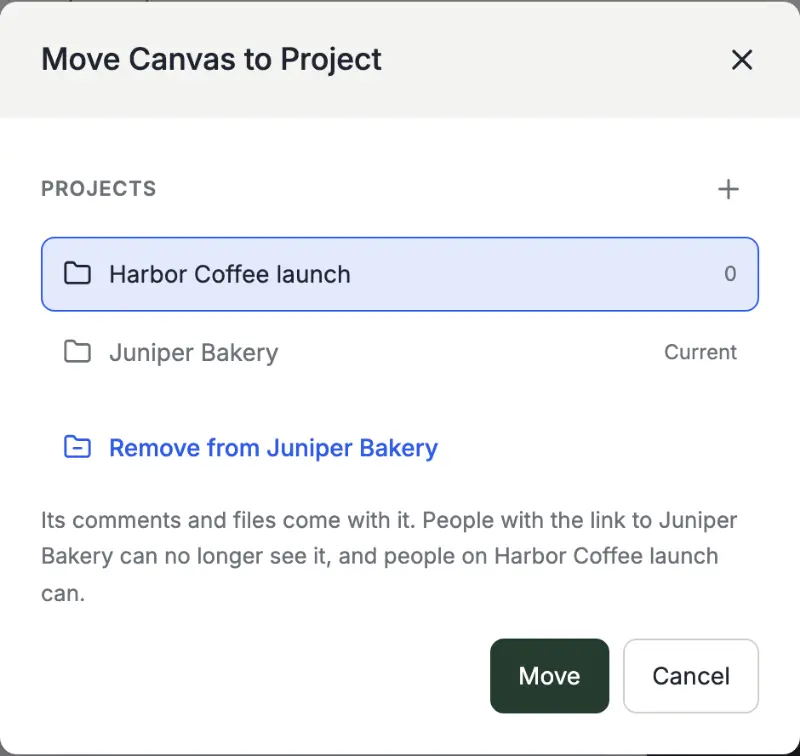
- Pick a project, or use the plus button to name a new one. To give the canvas a project of its own, choose Remove from and the current project’s name.
- Read the note under the list. It says who gains and loses access.
- Choose Move.
What moves with it
All its versions, comments and files. Nothing is copied or lost.
Who can see it afterwards
Sharing belongs to the project, so moving changes who can see it. People with the link to the old project can no longer see it, and people on the new project can.
If you can’t move it
- Only your team can move things.
- A website moves the same way, from its tile on a project page. If its project holds other canvases, move those first.