
- Open your review link on your phone. The website fills the screen.
- Drag to scroll the website, as you normally would.
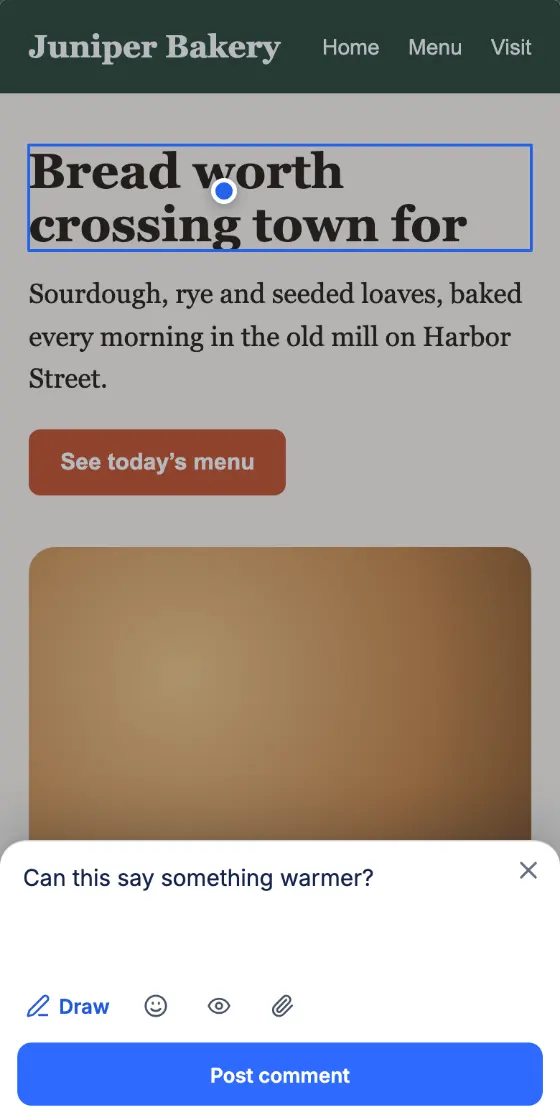
- Tap Comment, then tap the thing you want changed.
- Write your note in the sheet that opens, then tap Post comment. Use Draw to mark up the screenshot. The X keeps your note as a private draft.
- Feedback submitted appears for a moment, and you can keep going.
Find the other controls
| Button | What it does |
|---|---|
| Comment | Turns commenting on, and off again. |
| Comments and its count | Opens the comments. Search sits behind its magnifier. |
| Pages | On a website Agentic Edit hosts, every page, to search and open. On one reviewed from its own address, the page you’re on and Refresh. |
| The device button | Shows the size you’re previewing, such as Phone, and opens Preview device. |
| More | Refresh this page, Draw on the page, pins, Help and Workspace home. Your team also finds Share and Designs here. |
The tab beside the controls folds them away, so you see the whole website, and brings them back. More → Move controls puts them on the other side.
Type into the website
To fill in a field on the site, such as a search box, tap the field while browsing. A typing box appears. Type, press return to send it to the website, and press return again if you want to submit it. If the box doesn’t appear, choose Keyboard on the side toolbar.