
Add a video
- In a project, choose New canvas, then Videos.
- Drop in a file, or paste a YouTube link into Or paste a YouTube link.
- Choose Continue.
| Source | Details |
|---|---|
| Uploaded file | MP4, MOV or WebM, up to 5 GB each. A canvas can hold several. |
| YouTube link | Normal, Shorts, live and embed links all work. |
| Google Drive link | Not accepted, because Drive can’t report playback time. Download the file and upload it. |
Leave a comment
- Play the video to the moment you want.
- Click the picture. The video pauses and a card opens, showing the time, with a pin on that spot.
- Write your note and choose Post comment.
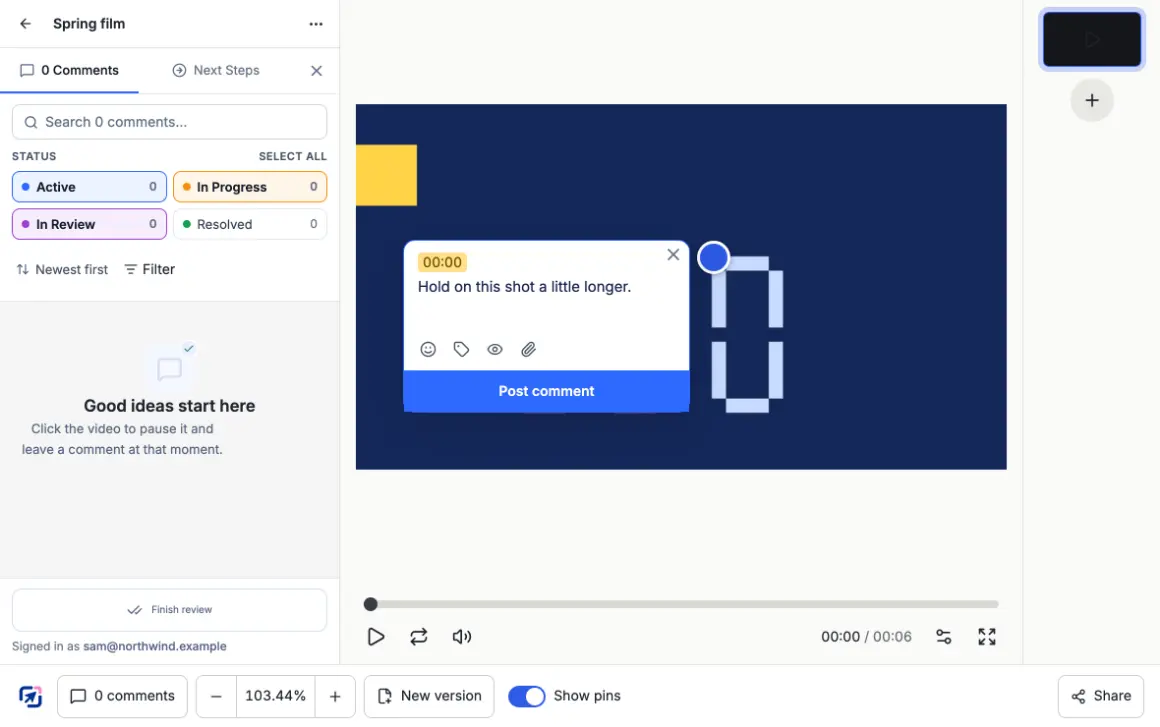
The comment keeps the time and a picture of that frame. Its pin shows when the video reaches that moment again, and whenever the comment is selected. To hide pins while you watch, turn off Show pins.
If a video won’t play
Your browser may not support how the file was made. Export it as an H.264 MP4 and upload it as a new version, or try another browser.