
A connection lets an AI assistant work in Agentic Edit for you. You sign in to Agentic Edit, choose the workspace and what it may do, and you can end it at any time. Once it’s connected, you can:
- Ask for a change to a website hosted in Agentic Edit. It edits a private draft and gives you a private preview to check.
- Ask it to create a new website, where your workspace allows it.
- Add photos and files to a change, from a link, your chat or your phone.
- Read your clients’ feedback on websites, videos, PDFs, images and emails, and report what it changed.
Nothing goes live until it’s published. A person on your team publishes in Agentic Edit. An assistant publishes only a website you allowed when connecting it, where a workspace owner lets assistants publish that website, and only when you ask it to.
The quickest way
- Open your assistant’s page below and copy its one-line setup prompt. In Agentic Edit, the same prompts are in Workspace settings, [AI assistants](/app/settings/ai): choose Copy setup prompt next to your assistant.
- Paste it into a new chat or task in that assistant. It reads its own setup page and connects Agentic Edit where it can, or walks you through it.
- Sign in to Agentic Edit when the approval page opens, and choose what it may do.
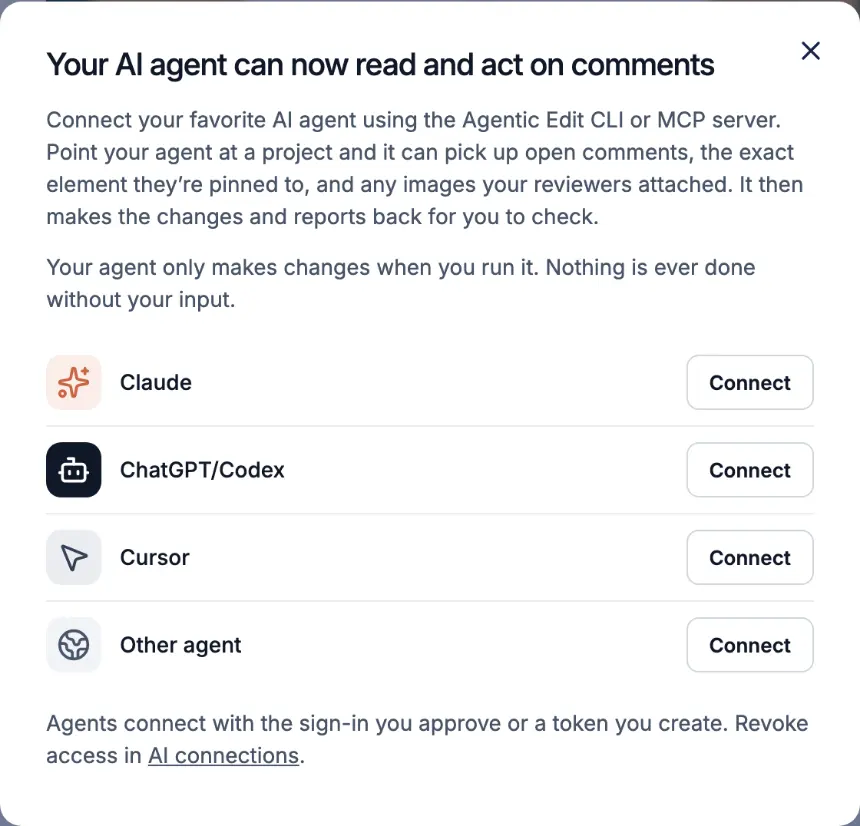
Choose your assistant
ChatGPT
Chat on chatgpt.com or in the ChatGPT desktop app: ask for a change to your website, check its private preview and read your clients’ feedback. Once it’s added, use it in the ChatGPT app on your phone with the same ChatGPT account and workspace. If the app doesn’t offer setup, add it at chatgpt.com/plugins in a browser. Steps for ChatGPT.
Codex
Codex in a terminal, its IDE extension or the ChatGPT desktop app: they share one setup. Ask it to change a website hosted in Agentic Edit, or to fix your clients’ feedback in a repository you open. Codex runs on your computer. On your phone, connect ChatGPT or Claude to the same Agentic Edit workspace. Steps for Codex.
Claude Code
Claude Code in your terminal or editor: ask it to change a website hosted in Agentic Edit, or to fix your clients’ feedback in a repository you open. Claude Code runs on your computer. On your phone, connect Claude to the same Agentic Edit workspace. Steps for Claude Code.
Claude
Chat on claude.ai or in the Claude desktop app: ask for a change to your website, check its private preview and read your clients’ feedback. Add it on the web or in the desktop app. It then works in the Claude app on iPhone and Android too. Steps for Claude.
Cursor
Cursor’s agent: ask it to change a website hosted in Agentic Edit, or to fix your clients’ feedback in the project you have open. Cursor runs on your computer. On your phone, connect ChatGPT or Claude to the same Agentic Edit workspace. Steps for Cursor.
Grok
Chat on grok.com: ask for a change to your website or a new one, and check its private preview. xAI’s guide covers adding it on grok.com. Add it there, then try it in the Grok app with the same account. Steps for Grok.
Meta Muse
Chat with Muse: ask for a change to your website or a new one. Muse, Meta’s assistant app, works on your phone. You add Agentic Edit by asking Muse. Steps for Meta Muse.
VS Code with GitHub Copilot
Copilot Chat in VS Code: ask it to change a website hosted in Agentic Edit, or to fix your clients’ feedback in the workspace you have open. VS Code runs on your computer. On your phone, connect ChatGPT or Claude to the same Agentic Edit workspace. Steps for VS Code with GitHub Copilot.
Google Antigravity
The Antigravity app, editor or CLI, which share one setup: ask the agent to change a website hosted in Agentic Edit, or to fix your clients’ feedback in a workspace you open. Antigravity runs on your computer. On your phone, connect ChatGPT or Claude to the same Agentic Edit workspace. Steps for Google Antigravity.
Gemini CLI
Gemini CLI in your terminal: ask it to change a website hosted in Agentic Edit, or to fix your clients’ feedback in a repository you open. Gemini CLI runs on your computer. On your phone, connect ChatGPT or Claude to the same Agentic Edit workspace. Steps for Gemini CLI.
Perplexity
Ask Perplexity on perplexity.ai for a change to your website, and check its private preview. Perplexity’s guide covers adding it on the web. Add it there, then try it in the Perplexity app with the same account. Steps for Perplexity.
Another assistant
Any assistant that connects to a remote MCP server over HTTP and signs in with OAuth. If your assistant has a phone app, add Agentic Edit where it adds MCP servers. Steps for another MCP client.
What you approve
Agentic Edit’s approval page opens in your browser. You make every choice on it:
- Sign in to Agentic Edit with your own account. The page names the app asking for access and where access will return. Continue only if you just started connecting it.
- If you belong to several workspaces, each has its own tab. Nothing is shared until you turn it on.
- Choose what it may do. The quickest is Allow everything, which turns on what your role lets you allow in that workspace, including every website you can edit, and then shows what it leaves off, for you to turn on one by one. Or turn on Edit beside each website it may edit under Websites: an owner sees every hosted website, and a member the ones on whose project team they are. Turn on Create new websites if it’s offered. Where it isn’t, choose one website under Connect this agent to one website and turn on Start private edits from this chat.
- Under Access lasts, choose 7, 30 or 90 days.
- Choose Review permissions, check the list, then choose Authorize.
Only where the page offers them, and only if you want them:
- Website data: read and change the website’s data tables. Changes apply at once.
- Share private previews with a link: a link to an accepted change that anyone can open without signing in, for up to 7 days.
- Publish beside a website (Publish this website live): publish a version when you ask it to. Offered unless a workspace owner turned off Publishers’ connected AI assistants can publish for that website.
- Manage beside a website (Manage this website): accept or reject changes and roll back for you, without you signing in; for an owner, also stop change tasks, restore the source and prepare a private preview. Offered unless a workspace owner turned off AI can manage this website for that website.
- Inspect hosting and propose operations for these websites: check hosting and ask for publication or a custom domain, which a person decides in Agentic Edit.
- Offer these websites to another workspace: an owner of the other workspace accepts it, signed in, in Agentic Edit.
- Add people to website teams: for a workspace owner or admin whose assistant creates websites, add someone already in the workspace to a website’s team, by their email address, after asking you. It never invites anyone or changes a role.
- Invite people to this workspace and manage its members: for a workspace owner or admin, invite someone by email address as a Member, send their invitation email again, change an admin to a Member, or remove a member, when you ask, as Settings → Team does. Every owner is emailed each time. It never makes anyone an admin or owner, and Allow everything doesn’t include it.
- Read project feedback and Reply to project feedback: read your clients’ feedback and report back on it.
Reconnecting opens the same approval page, and you choose again. A connection never gains a permission you didn’t tick, and turning a website’s switch off ends what depended on it.
Reading feedback alone doesn’t let an assistant see or change a website’s source code. Editing a website is its own choice on the approval page.
Which choices you see depends on your role and on whether creating websites is on for your workspace. See Edit a hosted website.
Check that it works
Start a new conversation in your assistant and ask:
Use Agentic Edit to list my workspaces, projects and canvases.If your workspace and projects appear, you’re connected. If not, see Fix an AI connection. To give it your clients’ feedback to work on, read The feedback loop.
Stop or change access
Open AI assistants, find the connection, open its … menu and choose Revoke access. To change what it may do, revoke it, then connect again and approve the new choices. Signing out of Agentic Edit doesn’t end a connection.
If your assistant can’t sign in through a browser, use a personal access token. Most tokens read feedback only: they can’t create or edit websites.