
| Who | What they can open |
|---|---|
| Owners and admins | Every project in the workspace. |
| Members | Only projects shared with them. |
| Someone you invited | The project, website or file canvas you invited them to, through their personal link. |
| Someone with a review link | The project or single canvas you shared, until the link expires or is turned off. |
| A connected agent | Only the projects you approved for it. |
Set who can get in
Open the project, choose Share, and answer Who can open this?
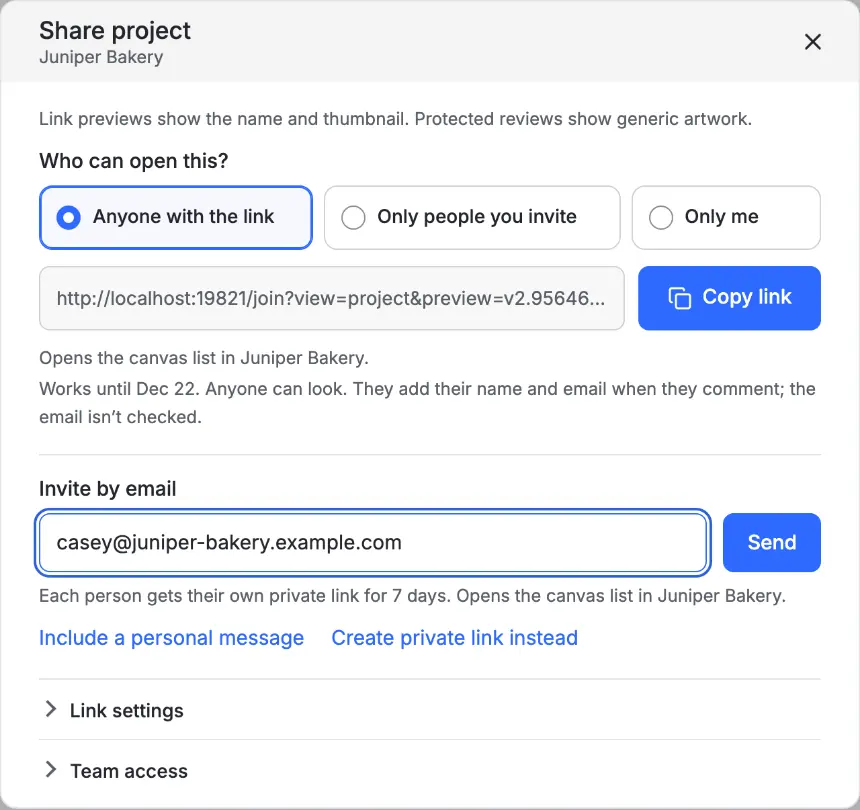
- Anyone with the link. Your review link and Copy link appear right away. Anyone who has it can look around, and adds their name and email when they leave feedback, so share it only with people you trust.
- Only people you invite. Your team and the people you invite can open it. Every review link stops working straight away, and anyone who joined through one loses access.
- Only me. Only you can open the project. Your team, reviewers and connected agents can’t. Review links and invitations are paused, and work again when you change this. Only the person who created the project can choose it.
Give one teammate access to one project
Owners and admins can open Team access in Share, or Project settings, and tick who on the team can open it. Changes save automatically. See Roles.
Share one canvas or the project
Choose Share from a canvas to give a new guest access to that file or website alone. Choose Share from the project to include its canvas list, its own website and its files. A website filed here from a different project needs its own invitation. Team members retain the access they already have.