
- Open the website review and browse to the page you want.
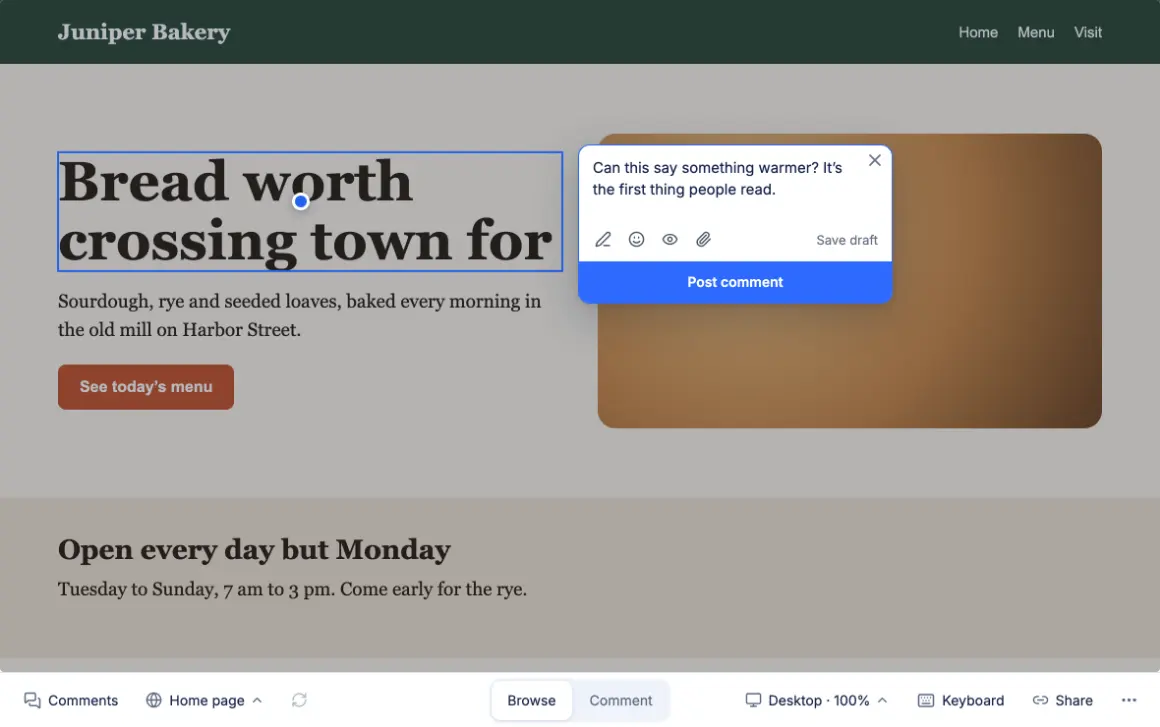
- Switch from Browse to Comment in the review toolbar. It’s at the top on desktop and at the bottom on a phone. On a computer, each part of the page is outlined as you hover.
- Click the thing you want changed. A numbered pin marks the spot and a card opens beside it.
- Write what should change. In instant view you can post while the screenshot is being taken. Choose Open screenshot when the preview appears to see it or draw on it.
- Choose Post comment. Feedback submitted appears for a moment, with View to open it, and you can carry on.
Go to another page
On a website Agentic Edit hosts, choose Pages in the review toolbar to see every page of the version you’re reviewing, with folders for addresses that go deeper, such as /resources/. Search by name or address, or type an address and press Enter. Pages you opened recently come first. The page opens inside this review.
On a website reviewed from its own address, Pages shows the page you’re on and Refresh. To go to another page, use the website’s own links, as you would when visiting it.
What’s on the card
| Icon | What it does |
|---|---|
| Pen | Draws on the screenshot. See Draw on the screen. |
| Smile | Adds an emoji. |
| Eye | Makes it a comment only your team can see. Your team only. |
| Paperclip | Attaches files. See Add files. |
For a wording change, write the replacement in your note. For example: “Change Contact to Book a call.”
Not ready to post?
Choose Save draft, or the X on a phone. A draft is private to you until you post it, and you’ll find it under the comments button in the review toolbar. To get rid of one, open it and choose Delete draft.
Mention a teammate
On your team, type @ in a note or reply to mention someone on the project. They get an email with a link to that comment. Reviewers can’t see who is on the team, and can’t mention anyone.
Use the keyboard
In Comment mode
With the preview focused, the arrow keys move the selection, Shift + arrow moves it farther, and Enter captures it. Press Escape to go back to browsing.
In Browse mode
Keys you press go to the website, including Tab and Escape. To leave the website with the keyboard, press Escape twice, F6 or Ctrl + Shift + Tab, or choose Leave website above the preview.