
Mark up the whole view
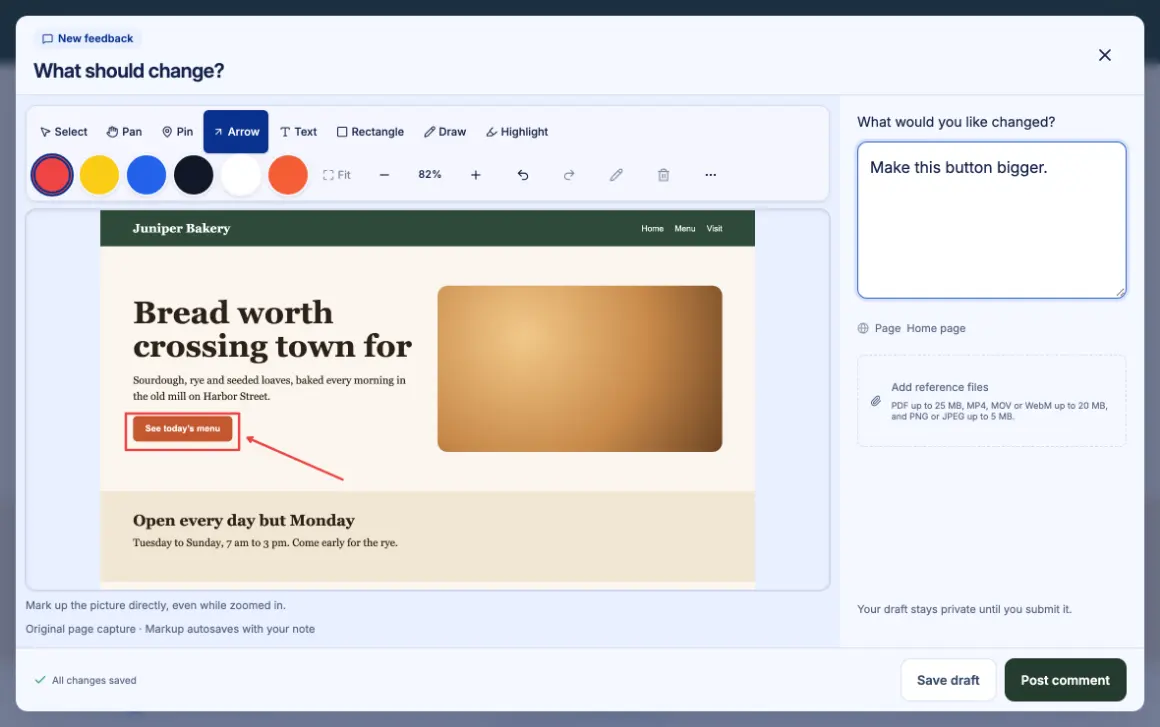
- In the review, choose More, then Draw on the page. It turns on Comment and captures the whole view, with no pin.
- Agentic Edit captures what’s on screen and opens it under What should change?
- Choose a tool along the top and draw: Pin, Arrow, Text, Rectangle, Draw or Highlight.
- Write your note beside the picture, then choose Post comment.
Mark up a comment you already started
On a new comment’s card, choose the pen. Your note and files come with you, on the same screenshot.
Getting around
- Pan moves around the picture without drawing, and Fit shows all of it.
- The minus and plus buttons zoom. You can draw at any zoom.
- Choose Select, then click a mark to move it, change its color, or delete just that mark. Undo restores it.
What gets saved
- Your markup is saved separately, and the original screenshot stays unchanged.
- Everything autosaves as a private draft until you post it.