
Find what needs doing
Open the review and choose the comments button in the review toolbar, which shows a count such as 4 comments. A project’s canvases have the same panel.
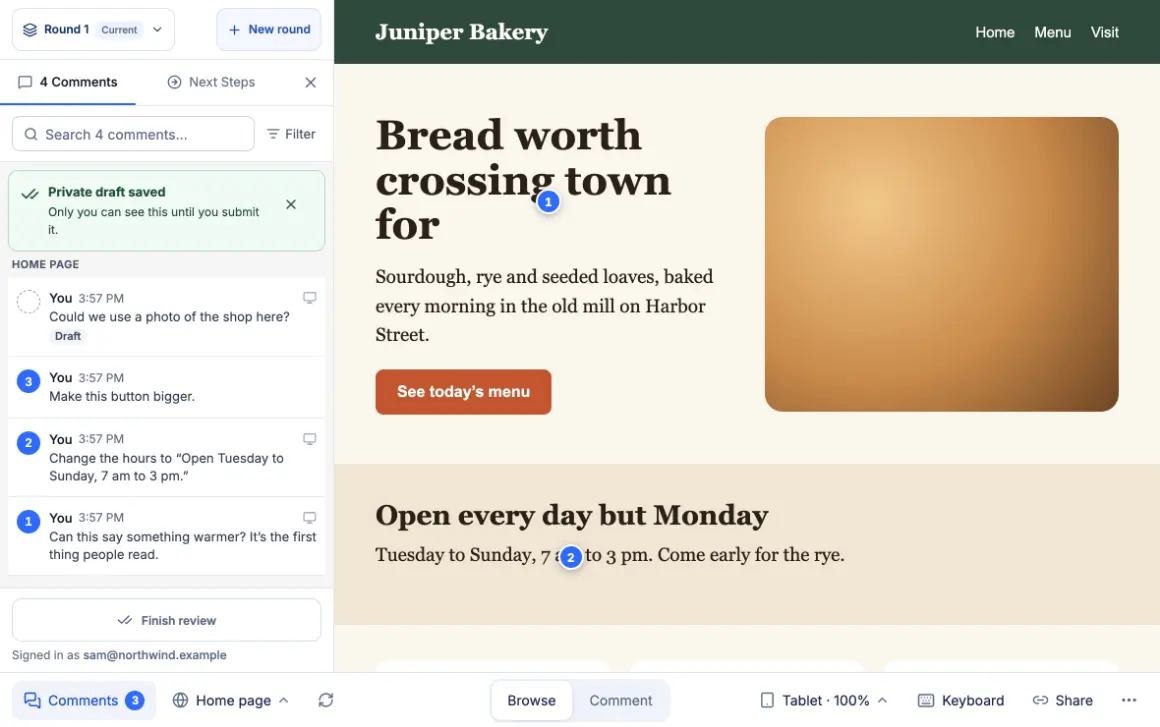
- Search looks through notes, screenshot markup, names and page addresses, within this project only.
- Open Filter to change the order, filter by commenter, or include resolved comments.
- Show comments on this page only keeps the list to the page you’re looking at.
Review together
When someone else is on the same page or file, their colored pointer shows where they are looking. Each person scrolls independently. Posted comments appear for the people who can read them, while unfinished drafts stay private.
Work on a comment
- Open a comment to see its original screenshot, markup and conversation.
- To draw on a posted screenshot, open its thumbnail and choose Mark up screenshot. Add or edit a mark, then save. The author or project team can do this once the screenshot is ready.
- Reply. You can attach files to a reply too, and reviewers can reply back.
- Set Priority to mark how urgently the comment needs attention.
- Team members can choose Resolve once they have checked the change.
After updating a website
- Open the website’s comments panel and choose New round, or choose Start a new review round from the project menu.
- Name the round and confirm. The updated website opens with a fresh comment list.
- Use the round menu above the comments to revisit earlier feedback. Its screenshots and discussion stay with that round.
A website review link stays on the round you shared. After starting a new round, choose Share → Copy link to send a new link. Previous links still show their original comments and saved screenshots, and stop accepting changes. A link to a particular older comment opens its original round. For an uploaded image, PDF, video or email, use a new file version instead.
Delete a comment
The person who wrote a comment, or your team, can choose Delete comment. That removes its replies and screenshot too.
The remaining comments are renumbered without gaps. A pin and its comment always share the same number, and links to the remaining comments keep working.
Export comments
Open Next Steps in the comments panel to export a CSV for spreadsheets or a page to print or save as a PDF. Website exports use the selected review round. Exports include team-only comments, marked as such, so take care where you send them.